
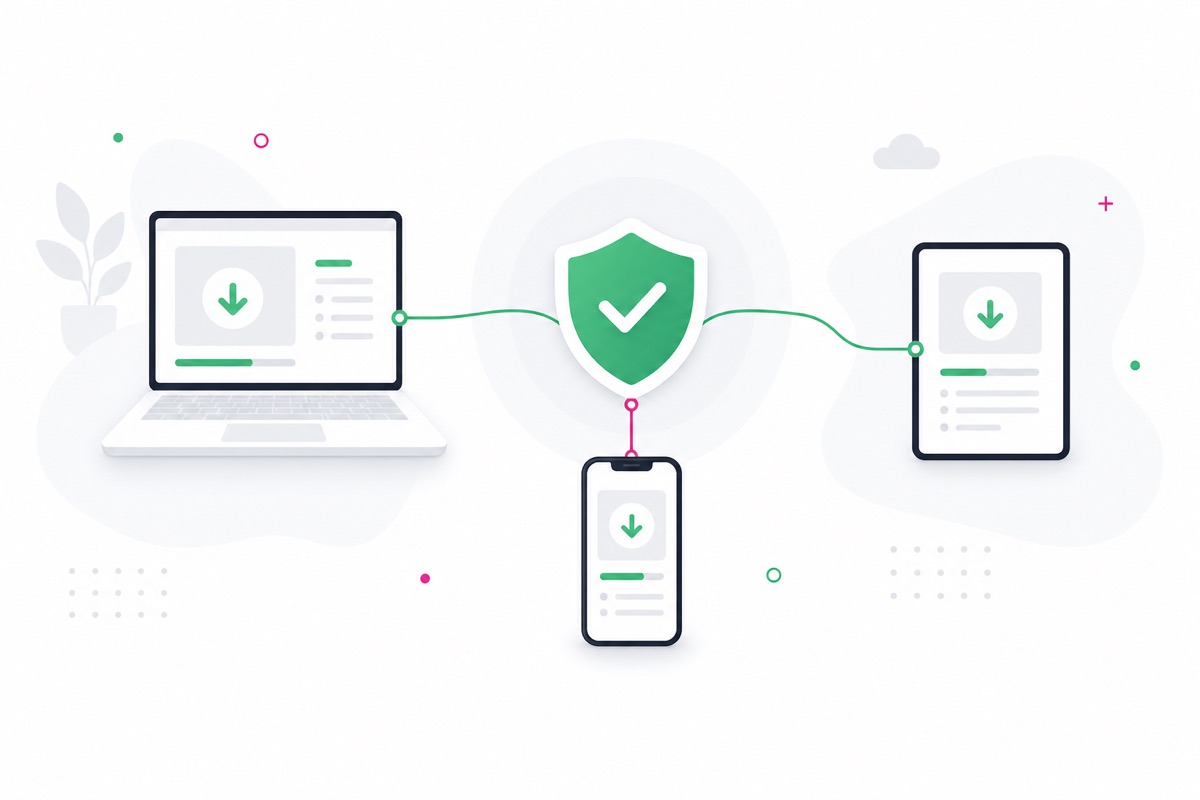
What Is V2Ray?
V2Ray (also known as Project V) is an open-source network proxy tool maintained by the v2fly community, built around the v2ray-core engine. It supports VMess, VLESS, Trojan, Shadowsocks, and other proxy protocols, with powerful routing, traffic obfuscation, and load balancing — one of the most widely used proxy cores today.
When people talk about "downloading V2Ray," what they actually download is a graphical client built on the V2Ray core: v2rayN on Windows, and v2rayNG (or v2flyNG, which uses the v2fly core) on Android. These clients are all open-source, free, and ad-free — this site hosts official downloads of each.
Official V2Ray Download
The v2rayN, v2rayNG, and v2flyNG versions offered here are always synced with the latest official releases — unmodified and identical to the original.
All installers are distributed through a local CDN, so you can download at full speed with no proxy needed. Head to the download page and pick the version for your system to get started.
Choose Your Platform to Download
Click the system you're using to go to the download page and see all the installers and architectures available for that platform.

Windows

macOS

Linux

Android
v2flyNG
Quick notes for each platform: Windows users just need the v2rayN 64-bit standard build — unzip and run, no install required; Mac users should pick the right build for Apple silicon (M-series) vs. Intel chips; Android users should grab the arm64 APK of v2rayNG, which covers virtually all modern devices; Linux users can choose deb, rpm, or a portable build depending on their distro. See the full file list on the download page.
Setup Guide
No matter the platform, the process is always the same three steps:
Windows (v2rayN)

- Download
v2rayN-windows-64.zipand extract it to a folder outside your system drive (e.g.D:\v2rayN). - Double-click
v2rayN.exeto launch it — it'll minimize to the system tray. Double-click the blueVicon to open the main window. - Add a subscription URL under "Subscription Groups," or import a node link (
vmess://,vless://, etc.) from your clipboard. - Select a node and set it as the active server, then right-click the tray icon and choose "Auto-configure system proxy" to start using it.
Android (v2rayNG)

- Download and install
v2rayNG_arm64-v8a.apk(your system may ask you to allow installs from unknown sources). - Tap the
+in the top right to import a node via "Import from Clipboard" or "Scan QR Code," or add a subscription group from the sidebar. - Select a node, then tap the button in the bottom right to connect. The first time, you'll need to approve the system's VPN permission request.
About Routing Modes
Routing lets you split traffic based on rules. Three common modes:
- Bypass Mainland (Whitelist): a preset built for users in mainland China — domestic sites connect directly, everything else goes through the proxy. If that's not your situation, "Global" mode below is usually the simpler choice.
- Blacklist: only listed sites go through the proxy, everything else connects directly.
- Global: all traffic goes through the proxy.
That covers the quick-start basics. For the full version — including subscription import details, macOS setup notes, and troubleshooting steps — see the V2Ray Setup Guide.
FAQ
What is V2Ray, is it free, what's the difference between the three clients, why does Defender flag it, why can't I get online after installing... we've organized these questions into a dedicated page, sorted by "Basics / Download & Install / Connecting & Using":